
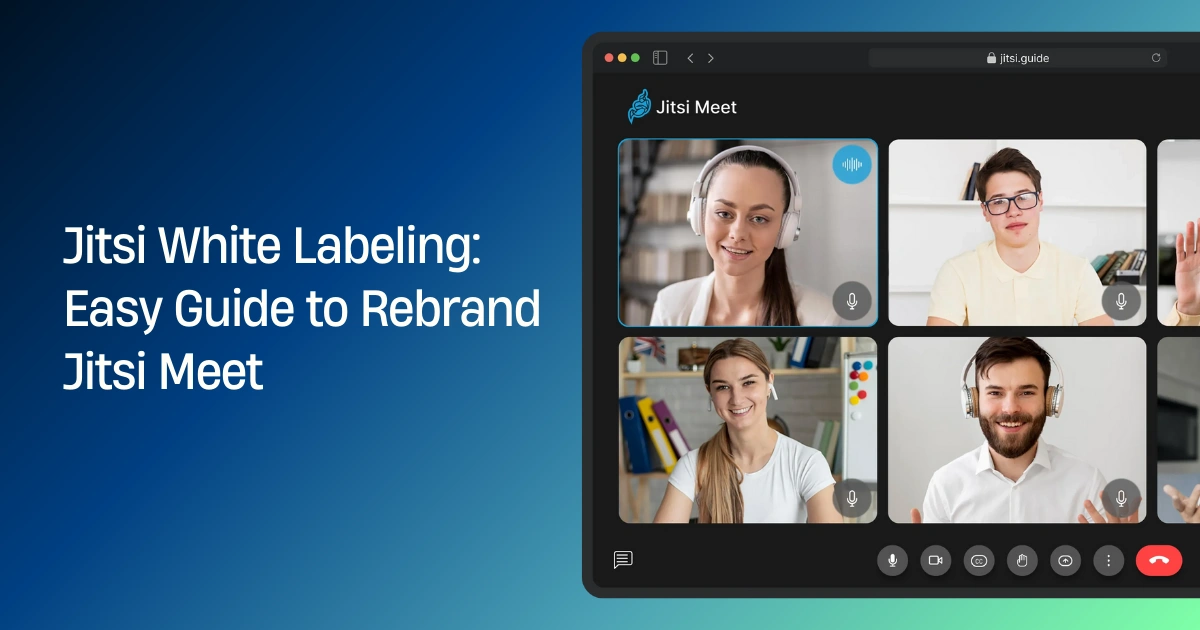
If you want to give your video platform a fully branded look, Jitsi White Labeling is the best way to do it. When you rebrand Jitsi Meet, you turn the open-source video platform into your own custom product. Whether you’re building a SaaS platform, an internal communication tool, or a client-facing service, white labeling helps you create a clean, professional experience that matches your brand.
In this guide, you’ll learn everything about how to rebrand Jitsi Meet step-by-step—logo changes, UI customization, color updates, domain setup, and more. We’ll keep it simple, human, and easy to follow.
What Is Jitsi White Labeling?
Jitsi white labeling means removing the default Jitsi branding and replacing it with your own. This includes:
- Your company name
- Custom logo
- Brand colors
- Favicon
- Custom links
- Landing page design
- Custom domain
- Personalized UI messages
- Unique features or integrations
The goal is simple: your users should feel like they’re using your own product, not Jitsi.
Why Rebrand Jitsi Meet?
There are many reasons companies choose to white label Jitsi:
Build Trust With Users: A branded platform looks more professional and familiar to your clients.
Improve Customer Experience: You can match the interface with your brand identity so users feel comfortable and confident.
Create Your Own SaaS Platform: White labeling is the first step in launching your own video SaaS like Zoom or Google Meet.
Remove “Powered by Jitsi”: This gives you full control over how your platform looks and feels.
Add New Features: You can add integrations such as LMS, CRM, custom authentication, meeting limits, or payment features.
Simple Jitsi White Labeling Steps (Full Guide)
In this section, we cover all the important steps required to rebrand Jitsi Meet from scratch. You can apply these steps on a self-hosted Jitsi Meet server (Docker or manual installation).
Step 1 — Prepare Your Server Environment
Before you start rebranding, make sure your Jitsi Meet server is installed and working.
You can use:
- Ubuntu 20.04 or 22.04
- Nginx as the web server
- Docker + Jitsi Docker setup (recommended)
- A domain name pointing to your server
- SSL certificate (Let’s Encrypt works fine)
If you don’t have a server setup yet, finish that first. White labeling will only work on self-hosted Jitsi, not on meet.jit.si.
Step 2 — Add Your Custom Logo
Your logo is the first thing users notice. You can replace the default Jitsi logo by updating the interface files.
For Docker installations:
Place your logo files in the web directory:
~/.jitsi-meet-cfg/web/interface_config.js
Update:
DEFAULT_LOGO_URL: 'images/your-logo.png',
DEFAULT_WELCOME_PAGE_LOGO_URL: 'images/your-logo.png',
Tips:
- Use PNG or SVG
- Keep your logo file lightweight
- Use transparent background for better look
Step 3 — Change Colors to Match Your Brand
Jitsi allows you to customize colors easily by editing CSS and configuration files.
You can modify:
- Header background
- Buttons
- Text colors
- Pre-join screen
- Participant panels Toolbars
For Docker setups, modify:
~/.jitsi-meet-cfg/web/interface_config.js
~/.jitsi-meet-cfg/web/custom.css
Add CSS like:
.toolbar {
  background-color: #1e1e1e !important;
}

.button {
  background-color: #0054a8 !important;
}
Use your brand’s primary and secondary color codes.
Step 4 — Remove Jitsi Watermarks and Branding
By default, Jitsi includes watermarks and links such as:
- Jitsi logo
- Jitsi.org link
- Jitsi watermark in the corner
You can disable these in interface_config.js:
SHOW_JITSI_WATERMARK: false,
SHOW_BRAND_WATERMARK: false,
SHOW_WATERMARK_FOR_GUESTS: false,
You can also add your own watermark:
BRAND_WATERMARK_LINK: 'https://yourwebsite.com',
Step 5 — Customize Loading and Welcome Screens
The welcome page is an important branding area. You can add:
- Custom title
- Tagline
- Brand message
- Product description
- CTA button
Modify:
~/.jitsi-meet-cfg/web/body.html
~/.jitsi-meet-cfg/web/interface_config.js
Update text like:
APP_NAME: 'Your Video Platform',
NATIVE_APP_NAME: 'Your App',
Add your own HTML content to match your branding style.
Step 6 — Update Favicon and Web Icons
Replace default icons:
~/.jitsi-meet-cfg/web/images/favicon.ico
~/.jitsi-meet-cfg/web/images/logo.png
Best icon sizes:
- 16x16
- 32x32
- 192x192
This helps with browser tabs, mobile shortcuts, and PWA icons.
Step 7 — Add Your Custom Domain
Your meeting URLs should look like:
https://meet.yourdomain.com
Not:
https://jitsi.example.com
Update Nginx config and DNS records:
- Create A record → your server IP
- Set correct SSL
- Restart services
Using a custom domain increases trust and professionalism.
Step 8 — Personalize UI Text and Messages
You can change all front-end messages including:
- Button labels
- Error messages
- Tooltips
- Meeting invitations
- Prejoin text
Open this file:
~/.jitsi-meet-cfg/web/lang/main.json
Search for text and replace with your custom wording. For example:
"Welcome to Jitsi Meet" → "Welcome to Your Video Platform"
Step 9 — Customize Meeting Links and Email Templates
Jitsi sends meeting invitations from the UI. You can adjust:
- Email subject
- Body content
- Branding links
- Footer text
Edit:
~/.jitsi-meet-cfg/web/interface_config.js
Change:
INVITATION_POWERED_BY: false,
And add your custom content.
Step 10 — Add Custom Features (Optional but Powerful)
Advanced white labeling often includes extra features:
Popular add-ons:
- User authentication (JWT, LDAP, OAuth)
- Recording using Jibri
- Live streaming
- Custom meeting limits
- Waiting rooms / lobby
- Admin panel
- Billing system for SaaS
- Custom UI redesign
These help you build a complete, professional platform based on Jitsi.
Step 11 — Use Custom Mobile App Branding
If you want mobile apps for Android/iOS, Jitsi allows full white labeling.
You can:
- Change app name
- Replace splash screens
- Add custom icons
- Modify colors
- Add your own store listing
- Remove Jitsi branding completely
The mobile app uses React Native and allows complete customization.
White Labeling Tips for Better Branding
Keep Colors Consistent: Use the same color palette as your website and product branding.
Use a Clean Logo: Make sure it is not too large or too small.
Remove Unnecessary UI Elements: A minimal look helps your platform feel more premium.
Add Support Links: Users trust you more when you offer live chat, email, or help pages.
Test on Mobile and Desktop: Branding must work perfectly on all devices.
Use Clear, Friendly Text: Keep the UI simple and easy for users.
Common Mistakes to Avoid
- Using oversized logos
- Forgetting to update all icon sizes
- Leaving default Jitsi links
- Using very bright or clashing colors
- Editing files directly in the container (changes reset after updates)
- Not backing up config files
- Skipping SSL setup
- Forgetting to compress images
Avoiding these mistakes will make your platform more polished and professional.
Final Checklist for Jitsi White Labeling
Before you launch, make sure these items are complete:
- Custom logo added
- Brand colors updated
- Watermarks removed
- Favicon replaced
- UI text updated
- Custom domain working
- Landing page updated
- Email templates customized
- Mobile apps branded (optional)
- All branding tested on all devices
Conclusion
White labeling Jitsi Meet is one of the best ways to create your own branded video platform. Whether you’re building a SaaS product, offering remote services, or launching an internal tool, Jitsi gives you full freedom to customize your interface.
With simple Jitsi White Labeling steps, you can easily make the platform look completely yours—logo, colors, icons, messages, domain, and more. The best part is that you keep full control since Jitsi is open source.
If you need help with complete white labeling, custom features, or full server setup, you can hire a Jitsi expert to build everything for you.