
Introduction
Managing who can join your meeting and what they can do inside it is very important for any online platform. With Jitsi Access Control, you can make your meetings more secure, organized, and easy to manage. Two powerful features—Lobby Mode and Role-Based Access—help you control participants and protect your meetings from unwanted guests.
In this guide, you will learn what these features mean, why they are important, and how to enable them step by step. Whether you’re running a business meeting, a classroom, or a private consultation, these settings will make your Jitsi experience safer and smoother.
What Is Jitsi Access Control?
Jitsi Access Control refers to the security settings that allow you to manage who can join your meetings, how they enter, and what permissions they have. These controls include:
- Lobby (waiting room)
- Password protection
- Authentication
- Role assignment (Moderator / Guest)
- Permission-based actions
These controls help you stop unwanted users, protect meeting privacy, and give you better command over the room.
Why Enable Lobby & Role-Based Access?
Using Lobby and role-based access is important for platforms like online classrooms, healthcare consultations, team meetings, and community events. Here are the main reasons:
Prevent Unknown Participants: Only approved people can enter your meetings.
Maintain Meeting Quality: Moderators can mute, remove, or restrict participants.
Protect Privacy: Especially important for doctors, consultants, and support teams.
Avoid Disruptions: Unknown users cannot enter and interrupt.
Build Trust: Participants feel safer knowing the meeting is controlled.
Understanding Lobby Mode in Jitsi
Lobby Mode is a feature that puts ne w participants in a waiting room. They can only enter the meeting when the host or moderator approves them.
How Lobby Mode Works
- Participants join the meeting link.
- Instead of entering directly, they stay in a waiting area.
- The moderator gets a notification.
- The moderator decides whether to accept or deny entry.
This ensures full control when managing public or large meetings.
Role-Based Access in Jitsi
Role-based access means that users have different permissions depending on their role. Jitsi mainly has two roles:
1. Moderator
- Can admit or deny users
- Can mute everyone
- Can kick participants
- Can start or stop recording
- Can enable or disable lobby
- Can change meeting settings
2. Guest (Regular Participant)
- Can join the meeting
- Can use chat
- Can share audio/video
- Cannot control meeting settings
Role-based access helps keep meetings organized and secure.
How to Enable Lobby in Jitsi
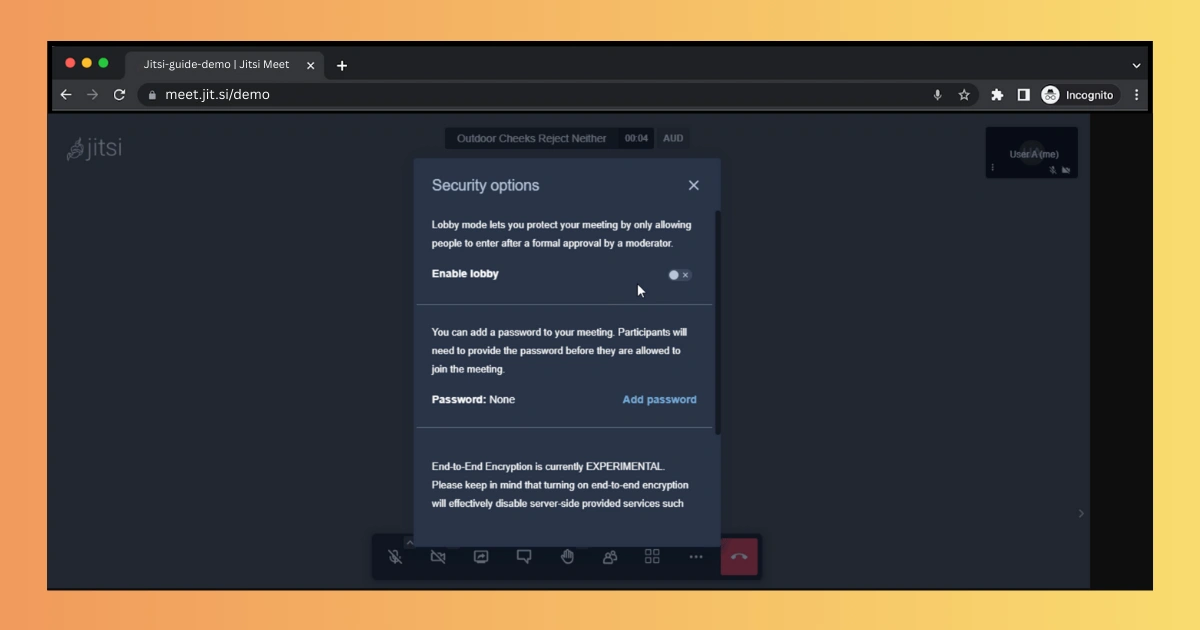
Enabling Lobby Mode is simple, and you can do it from the meeting interface.
Steps to Enable Lobby Mode
- Join your Jitsi meeting.
- Click the Security icon (the shield).
- Turn on Lobby.
- You will now approve users before they enter.
Best Use Cases
- Open meetings
- Public webinars
- Classrooms
- Telemedicine consultations
- Group discussions with unknown attendees
How to Enable Role-Based Access in Self-Hosted Jitsi
To make access more secure, you can enable authentication so that only approved users become moderators. Others who join without authentication become guests.
This is done in the Prosody configuration.
Step 1 — Edit Prosody Configuration
Open:
/etc/prosody/conf.avail/your-domain.cfg.lua
Enable internal authentication:
authentication = "internal_hashed"
Step 2 — Create Host Users
Run:
prosodyctl adduser admin@your-domain
This account becomes a moderator.
Step 3 — Update Jicofo Config
Open:
/etc/jitsi/jicofo/jicofo.conf
Add:
authentication {
    enabled = true
    type = XMPP
    login-url = "your-domain"
}
Step 4 — Update Jitsi Meet Config
Open:
/etc/jitsi/meet/your-domain-config.js
Enable:
authentication: 'login',
Once done:
Logged-in users become Moderators
Unauthenticated users become Guests
This is the core of Jitsi’s role-based access system.
Combining Lobby + Role-Based Access for Maximum Security
When you use both features together, your meeting becomes highly secure:
Only trusted users become moderators - No random person can control your meeting.
Lobby protects entry - Even guests must wait for approval.
Meeting stays private - Ideal for medical, legal, or corporate sessions.
No meeting disruptions - You control who enters and who stays.
Extra Security Features You Should Enable
Here are additional settings that make your Jitsi meetings safer:
- Password Protection: Add a meeting password along with lobby mode.
- Secure Domain Setup: Only authenticated users can create meeting rooms.
- Disable Lobby for Trusted Groups: You can disable lobby if all expected users log in with accounts.
- Screen Share Permissions: Limit screen sharing to moderators only.
- Recording Access Control: Only moderators can start recordings.
Common Issues and How to Fix Them
Even with good setup, sometimes you may face small issues. Here’s how to solve them.
Lobby Not Working
- Check if the Jitsi version is updated.
- Ensure no conflicting configs in config.js.
Users Becoming Moderator Automatically
- Secure domain may not be enabled correctly.
- Prosody authentication misconfigured.
Guest Access Not Allowed
- Check anonymous domain settings in Prosody.
Authentication Fails
- Wrong username/password
- Prosody service not restarted
Tips for Using Jitsi Access Control Effectively
Here are quick best practices:
Always assign moderators: Make sure only trained people get access.
Use lobby for public links: Prevents unexpected users.
Educate participants: Tell them what to expect when entering lobby.
Test before important events: Check security settings 10 minutes before.
Keep your server updated: Security updates improve access control.
Conclusion
Jitsi offers powerful tools to control your meetings, and understanding Jitsi Access Control helps you make your online sessions more secure and organized. With features like Lobby Mode and Role-Based Access, you can decide who joins, who becomes a moderator, and what actions each participant can take.
Whether you are running a private session or a large online event, these settings help you maintain privacy, safety, and trust. Start using them today to improve your Jitsi experience.
Ready to Secure Your Jitsi Meetings?
Implement these Jitsi Security Best Practices today to protect your video conferences from potential threats. Whether you’re hosting business meetings or connecting with family, taking proactive security measures ensures your conversations remain private and secure. Start with the basic settings and gradually implement advanced features as you become more comfortable with Jitsi’s security options.